Don't Buy the Chromebook 4 2019 Until You Read This Full Analysis
The Chromebook 4 (commonly found as the Samsung Chromebook 4 in many markets) arrived as a no-frills, budget-friendly Chromebook aimed at students, casual users and organizations that need large fleets of inexpensive laptops. On paper it promises portability, long battery life and the simplicity of Chrome OS — but the practical question every buyer cares about is: does it deliver enough performance, screen quality and long‑term value to be a sensible purchase today? This in-depth analysis walks through real-world use cases, hardware and software considerations, strengths and limitations, and a clear buying guide so prospective purchasers can decide with confidence.
Overview: what the Chromebook 4 2019 is trying to do
The Chromebook 4 is positioned in the entry-level segment. It targets buyers prioritizing price, battery life, and a lightweight Chrome OS experience over raw horsepower or premium materials. Typical configurations ship with low-power Celeron-class processors, modest RAM (4GB is common), and small local storage (32GB eMMC is typical) — a spec mix designed to keep costs down while delivering fast boot times and responsive web-based workflows.
Chrome OS itself plays a large role in the product’s value proposition: with most apps running in the cloud or as web/Android apps, the Chromebook 4 leans on networked workflows instead of local horsepower. That’s ideal for certain users and limiting for others — and understanding that distinction is central to an informed purchase.
Detailed product analysis
Build quality and design
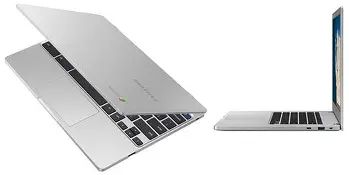
The Chromebook 4 follows the conservative design language of many budget notebooks: a sturdy, matte plastic chassis with a compact footprint and modest weight. In hands-on usage the construction is adequate for daily transport in backpacks and classrooms, though it lacks the metal surfaces and tight tolerances of premium Chromebooks. The hinge is serviceable for normal laptop angles but may feel less refined with heavy one-handed lid movement.
Display
Most Chromebook 4 units ship with an 11–12 inch HD panel (1366×768) rather than a full HD screen. In real-world use this means the display is perfectly fine for document editing, web browsing and video streaming at casual viewing distances, but it struggles for color-critical work or multi-window productivity where pixel density and screen real estate matter. The anti-glare finish on some models helps in bright classrooms, but viewing angles and contrast are not a strength compared with higher-tier Chromebooks.
Performance
Performance expectations should be set carefully. The low-power processors commonly paired with this model are capable of running Chrome OS and multiple browser tabs, streaming media, and light Android apps. However, the Chromebook 4 is not suited for sustained heavy multitasking (dozens of tabs, multiple Linux containers, heavy Android gaming or video editing). For students running Google Docs, Zoom calls, and a handful of tabs, the experience is generally smooth; for power users who keep dozens of tabs or use large spreadsheets, the limitations of 4GB RAM and eMMC storage become apparent.
Storage and expandability
Local storage is intentionally minimal. With 32GB eMMC being common, the device assumes cloud-first storage habits. This is acceptable for users who store documents in Google Drive and stream media, but it can be limiting when installing many Android apps, offline files or Linux packages. Chromebooks usually include a microSD slot on many models, which is a simple way to expand storage for media and offline files — buyers should confirm the exact configuration before purchase.
Battery life
One of the Chromebook 4’s selling points is respectable battery life in daily use. In mixed light-use scenarios (web browsing, document editing, streaming a few videos), the device typically lasts through a school or workday without needing a recharge. Actual runtime depends on display brightness, active apps and network activity, but the low-power internals contribute to efficient battery usage overall.
Shop the latest Electronics picks on Amazon.
Shop Amazon →Keyboard and trackpad
The Chromebook 4's keyboard is adequate for long typing sessions; key travel and spacing are optimized for accuracy rather than premium tactile feedback. The trackpad is responsive and supports Chrome OS gestures, though it may lack the glass-smooth feel of higher-end models. For most students and casual users, both input devices are more than serviceable.
Ports and connectivity
Expect a sensible array of ports: at least one USB-C (used for charging and data), one or two USB-A ports, a 3.5mm jack and often a microSD slot. Wi‑Fi and Bluetooth performance are typical for the class — sufficient for online learning and streaming but not necessarily optimized for maximum range in congested networks.
Software and ecosystem
Chrome OS is the Chromebook 4’s key differentiator: fast updates, secure sandboxed apps, and tight integration with Google services. Android app support opens a large app library, and some models optionally support Linux apps for development tasks. Buyers should verify how many years of automatic Chrome OS updates remain for a specific unit (Auto Update Expiration, or AUE), as that affects long-term security and functionality.
Pros & Cons
- Pros
- Very affordable price point compared with traditional laptops
- Lightweight and portable — good for classrooms and travel
- Long battery life in typical web-centric usage
- Simple, secure Chrome OS environment with fast boot and maintenance
- Good for students and users who primarily use web apps and cloud storage
- Cons
- Limited local storage and modest RAM — can bottleneck real-world multitasking
- Low-resolution display on many configurations — not ideal for creative work
- Build is functional but not premium; hinge and chassis may feel basic
- Not suitable for heavy local processing: video editing, large code builds, or heavy virtualization
- Need to check Auto Update Expiration — long-term support varies by model and purchase date
Comparison table: Chromebook 4 2019 vs. common alternatives
| Model | Typical screen | Typical RAM / Storage | Ideal for | Price tier |
|---|---|---|---|---|
| Chromebook 4 (2019) | 11–12" HD (1366×768) | 4GB / 32GB eMMC | Students, light web work, travel | Budget |
| Larger budget Chromebook (e.g., "4+") | 13–15" Full HD options | 4–8GB / 32–64GB | Users wanting bigger screen and slightly better productivity | Budget to lower-mid |
| Mid-range Chromebook | 12–13" Full HD (1920×1080) | 8GB / 64–128GB SSD | Power users, developers using Linux, content creators on budget | Mid |
Real-world use cases and who should buy it
Understanding the Chromebook 4’s sweet spots makes it easier to decide whether it fits a buyer’s needs.
Best fit
- Students — The Chromebook 4 excels for K–12 and many college students who primarily use web-based tools: Google Workspace, learning management systems, video lectures and light note-taking. Its portability, battery life and low cost make replacement easier if damaged or lost.
- Travelers and commuters — For users who need a light laptop for email, calendar, and web access while on the move, the Chromebook 4’s battery and compact size are advantages.
- Organizations and schools — Bulk deployment of Chromebooks is common because lower price and simple management reduce total cost of ownership in classrooms and public kiosks.
Not a good fit
- Power users — Those who run complex web apps with many simultaneous tabs, heavy spreadsheets, high-resolution photo editing or significant Linux development work will quickly bump against hardware limitations.
- Creatives — The display and storage limitations make the Chromebook 4 a poor choice for color-critical photo/video editing or large multimedia projects stored locally.
- On-device gamers — While some Android games run, the device is not intended for demanding gaming and lacks GPU headroom.
Buying guide: what to check before purchase
When considering a Chromebook 4 purchase, treat the decision as a match between intended workflows and hardware limits. These practical checks help ensure the device meets expectations.
1. Confirm the exact configuration
Chromebook 4 units ship with different CPU and memory configurations. Where possible, prioritize 8GB of RAM if the usage involves many tabs or light multitasking; if the budget only allows 4GB, expect to limit background tabs and apps. Check whether the model offers 32GB or 64GB storage and whether it has a microSD slot.
2. Check the display
Confirm screen size and resolution. If most tasks are document-centric and web browsing, the standard HD display is acceptable. If the user will work with spreadsheets with many columns, multiple windows or watch lots of high-definition video, look for a full HD panel or consider a larger-screen alternative.
3. Verify Chrome OS Auto Update Expiration (AUE)
Chromebooks receive automatic updates for a fixed period; after that they no longer get feature and security updates. Before buying, check the AUE for the specific model and manufacturing date. If long-term support is important, prefer models with several more years of guaranteed updates.
Looking for the best Electronics deals on Amazon?
View Offers →4. Confirm ports and connectivity
If the user needs wired peripherals, projectors, or external storage, verify the available ports (USB‑A, USB‑C, microSD). For frequent video conferencing, check the webcam quality and microphone performance; external USB audio or headsets remain an easy workaround.
5. Consider accessories that matter
Common accessories can improve the experience: a protective sleeve, a USB-C hub (if more ports are needed), and an external SSD or microSD card for extra storage. For those who type a lot, evaluating keyboard comfort in-store is recommended where possible.
6. Think about future needs
Chromebooks are cloud-centric; users with growing storage or performance needs should opt for higher RAM and storage or a mid-range Chromebook instead of stretching the budget on a device that will feel slow in a couple of years.
Practical tips for getting the most out of a Chromebook 4
- Use cloud storage (Google Drive) as the primary repository to avoid filling limited local eMMC storage.
- Keep background tabs to a minimum; use tab-management extensions or tab groups to limit memory pressure.
- Install apps selectively — Android apps can consume storage; remove unused apps periodically.
- Use a microSD card for media and offline documents rather than relying on small internal storage.
- Check for firmware and Chrome OS updates regularly to keep the device secure and performant until its AUE.
Final verdict
The Chromebook 4 2019 is a sensible choice when the buyer’s needs are well aligned with its strengths: affordability, portability and reliable Chrome OS basics. For students, travelers, and organizations that use cloud-first workflows, it offers a practical balance of battery life and usability. However, prospective buyers should not purchase it expecting a high-end laptop experience. The limited RAM, basic display and small internal storage make it a poor match for heavy multitasking, content creation or prolonged local computing tasks.
Before buying, confirm the exact configuration, check the remaining Chrome OS update window, and honestly assess usage patterns. If the primary activities are web browsing, video calls, document editing and streaming, the Chromebook 4 can be a good value. If the work involves heavier local processing, larger displays, or longevity in terms of updates and expandability, investing in a mid-range Chromebook with more RAM, better screen and faster storage will deliver a noticeably better experience.
In short: don’t buy the Chromebook 4 2019 because it’s the cheapest option — buy it because its limitations align with the way the device will be used. When the match is right, it’s an efficient, low-cost machine that does what Chromebooks do best. When the match is wrong, its compromises become obstacles to productivity.